

Obsidian Remote Sync Setup
Updated (5 minutes ago)View source
A method for syncing Obsidian notes using Cloudflare R2 object storage.
A method for syncing Obsidian notes using Cloudflare R2 object storage.
Note: This article was translated from the original Chinese by an AI.
I was originally using iCloud to sync my Obsidian notes (yep, I feel like iCloud is better than OneDrive even on Windows, awa), but @mizorewww said this might cause data loss and recommended the remotely-save plugin he was using. Combined with Cloudflare's R2 storage, you can sync your notes for free.
So I did a bit of research, read through the docs, and got it working.
You can also follow the official documentation (all in English) for the detailed process.
Open Obsidian and click the settings icon in the bottom-left corner.
Click Community Plugins in the sidebar.
Click Browse.
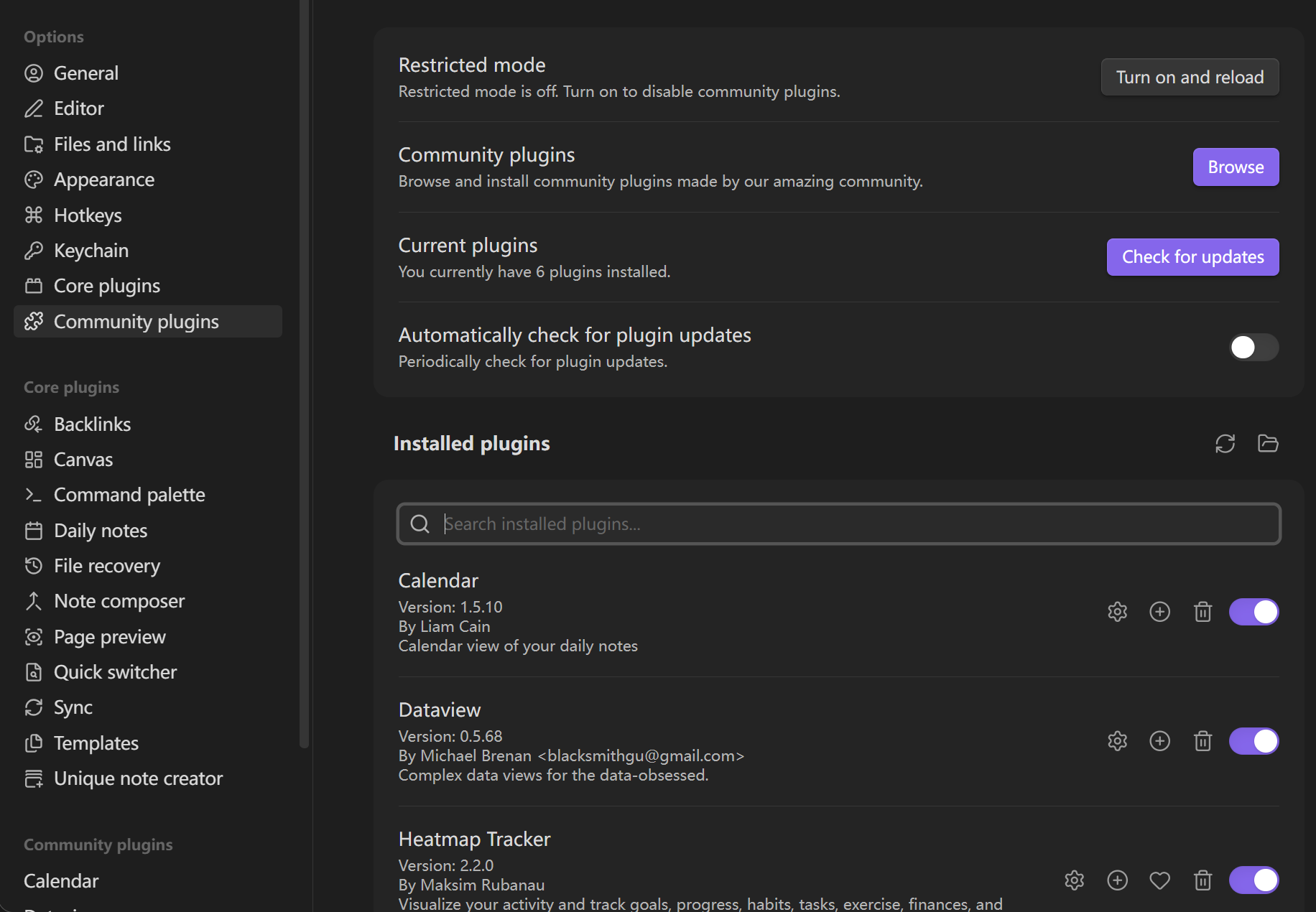
Search for remotely-save, then install and enable it.
In the left sidebar, click Storage and Databases, then click R2 Object Storage.
Click Create Bucket in the top-right corner.
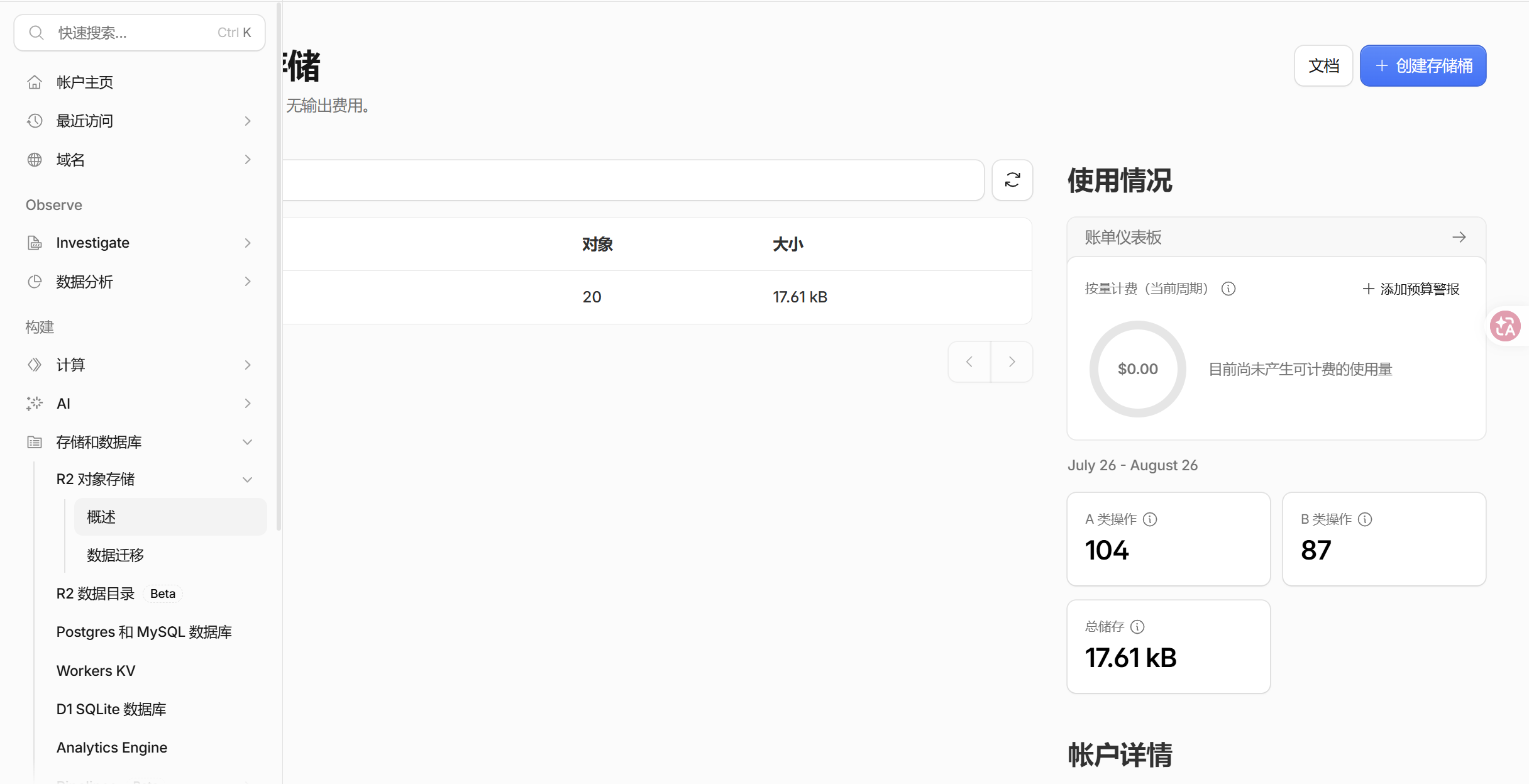
Fill in a name and keep the other settings as default.
After creating it, go back to the R2 Object Storage page, scroll to the bottom-right, find Account Details, and click Manage to enter the API token management page.
Create an account API token.
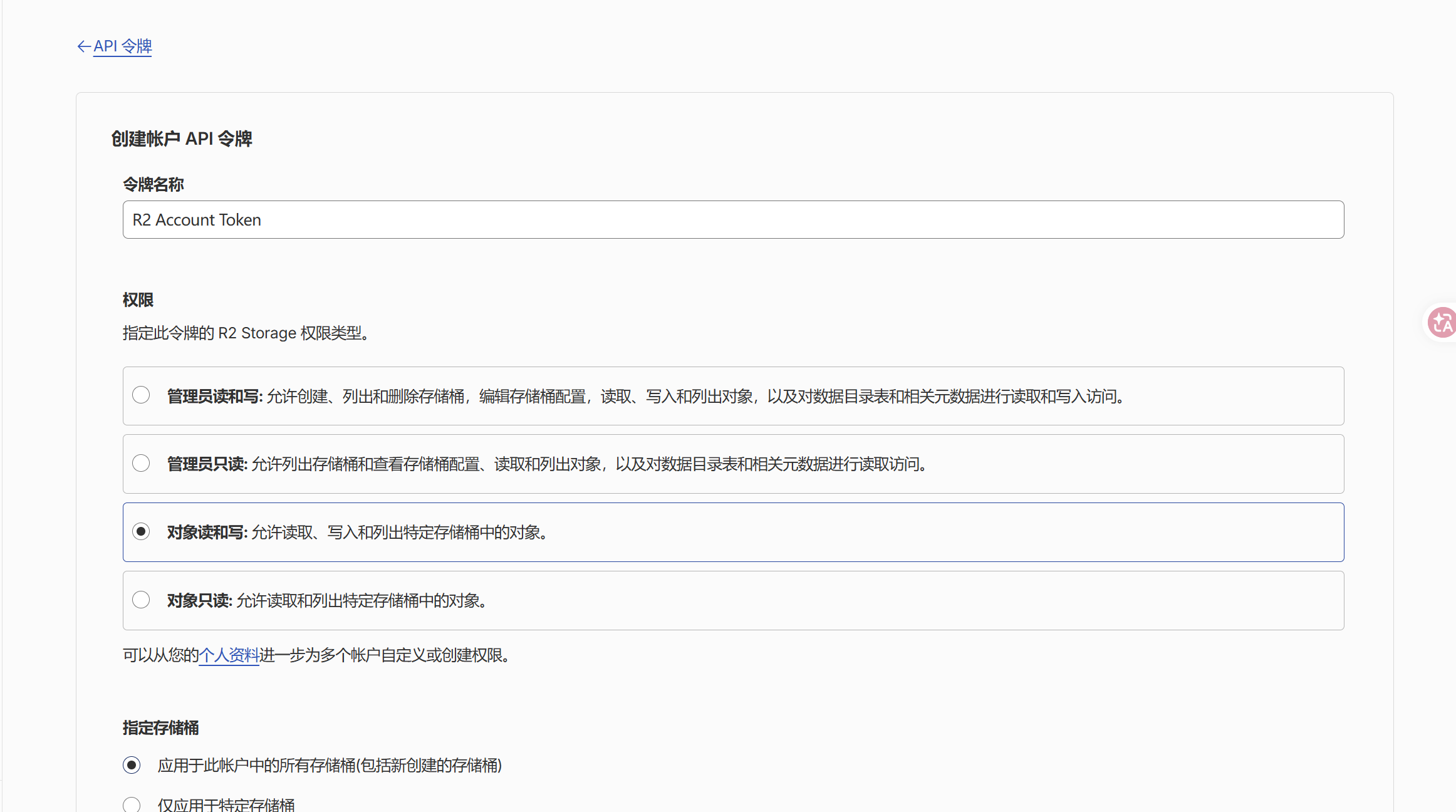
Fill in a name.
Note: change the permission to Object Read and Write.
Keep the rest as default.
(No screenshots here for privacy reasons.)
On the popup page, scroll to the very bottom, find the endpoint that starts with https, and copy it into remotely-save's endpoint field.
Copy the Access Key ID into access key ID.
Copy the Secret Access Key into secret Access key.
For region, fill in us-east-1.
Scroll down and check the connectivity. If it's connected, you're all set!
Unless noted otherwise, this post is licensed under CC BY-NC-SA 4.0. Please attribute, use non-commercially, and share adaptations under the same terms.